
How to Install an SSL Certificate in DirectAdmin
Securing your website with SSL ensures encrypted communication between your server and visitors. DirectAdmin makes it straightforward to install and manage SSL certificates. Follow the steps below.
Step 1: Log in to DirectAdmin
-
Access your DirectAdmin control panel using your credentials.
-
Navigate to the User Level interface.
Step 2: Open SSL Certificates Section
-
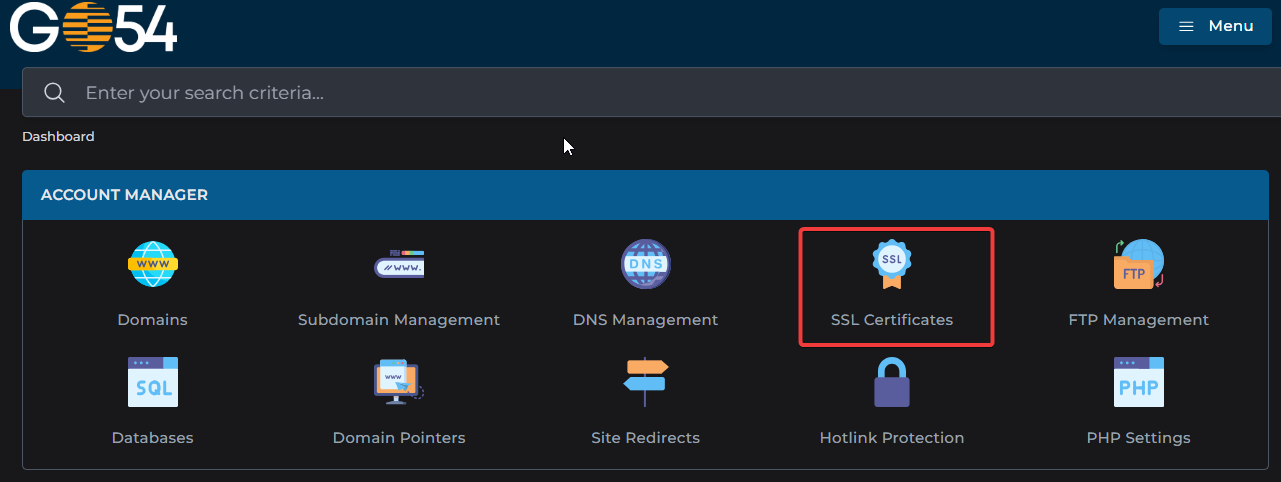
From the main menu, go to Account Manager → SSL Certificates.
-
This is where you’ll manage certificate requests and installations.
Step 3: Generate a CSR (Certificate Signing Request)
-
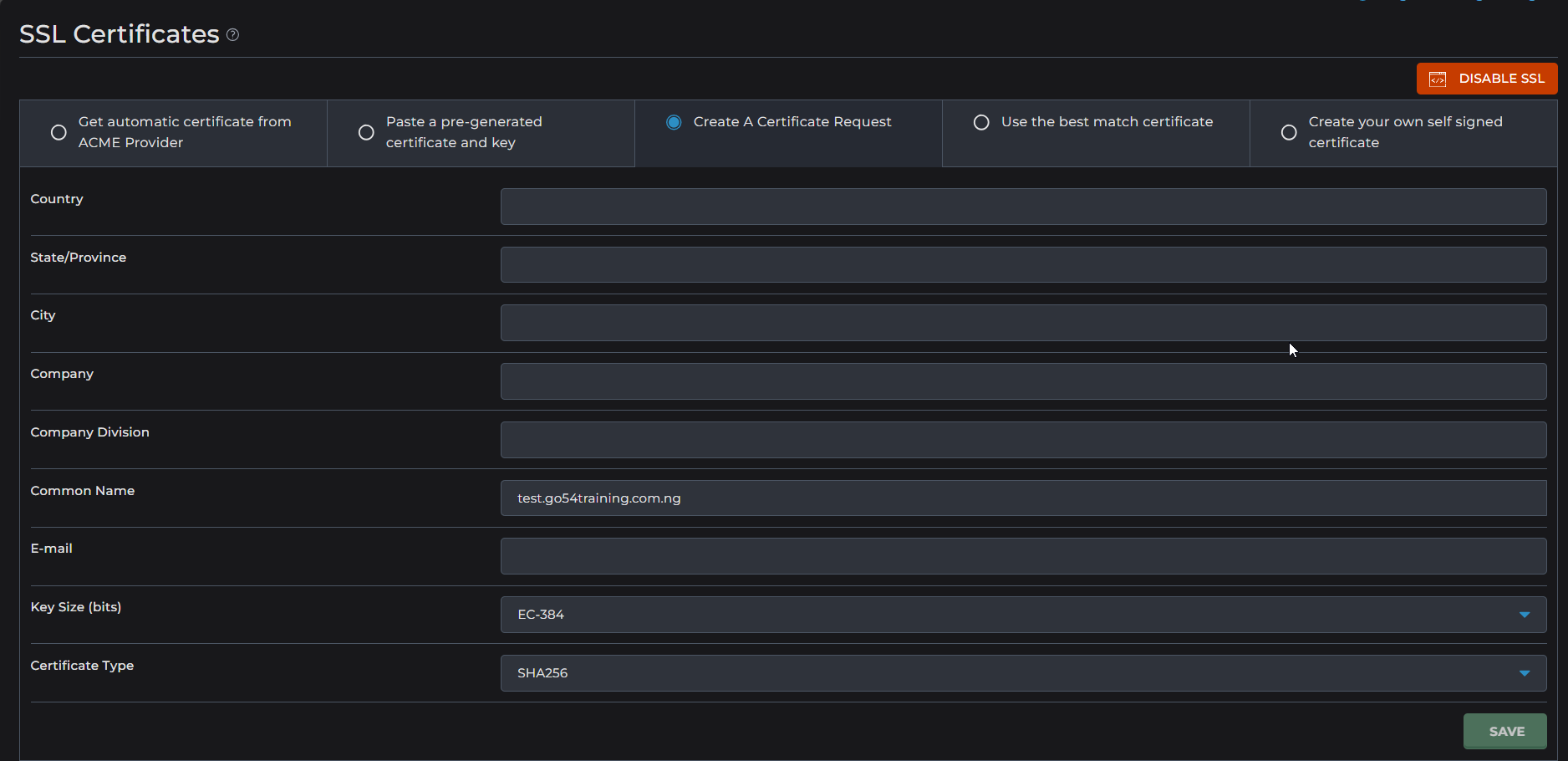
Select Create a Certificate Request.
-
Fill in the required details:
-
Common Name (CN): Your domain name (e.g.,
example.com). -
Organization Name: Your company or personal name.
-
City/Locality, State/Province, Country Code: Accurate location details.
-
Click Save to generate the CSR.
-
Step 4: Submit CSR to Certificate Authority
-
Copy the CSR text and provide it to your SSL provider (e.g., Comodo, DigiCert, Let’s Encrypt).
-
They will issue your SSL certificate files (usually
.crtand.ca-bundle).
Step 5: Install the SSL Certificate
-
Return to SSL Certificates in DirectAdmin.
-
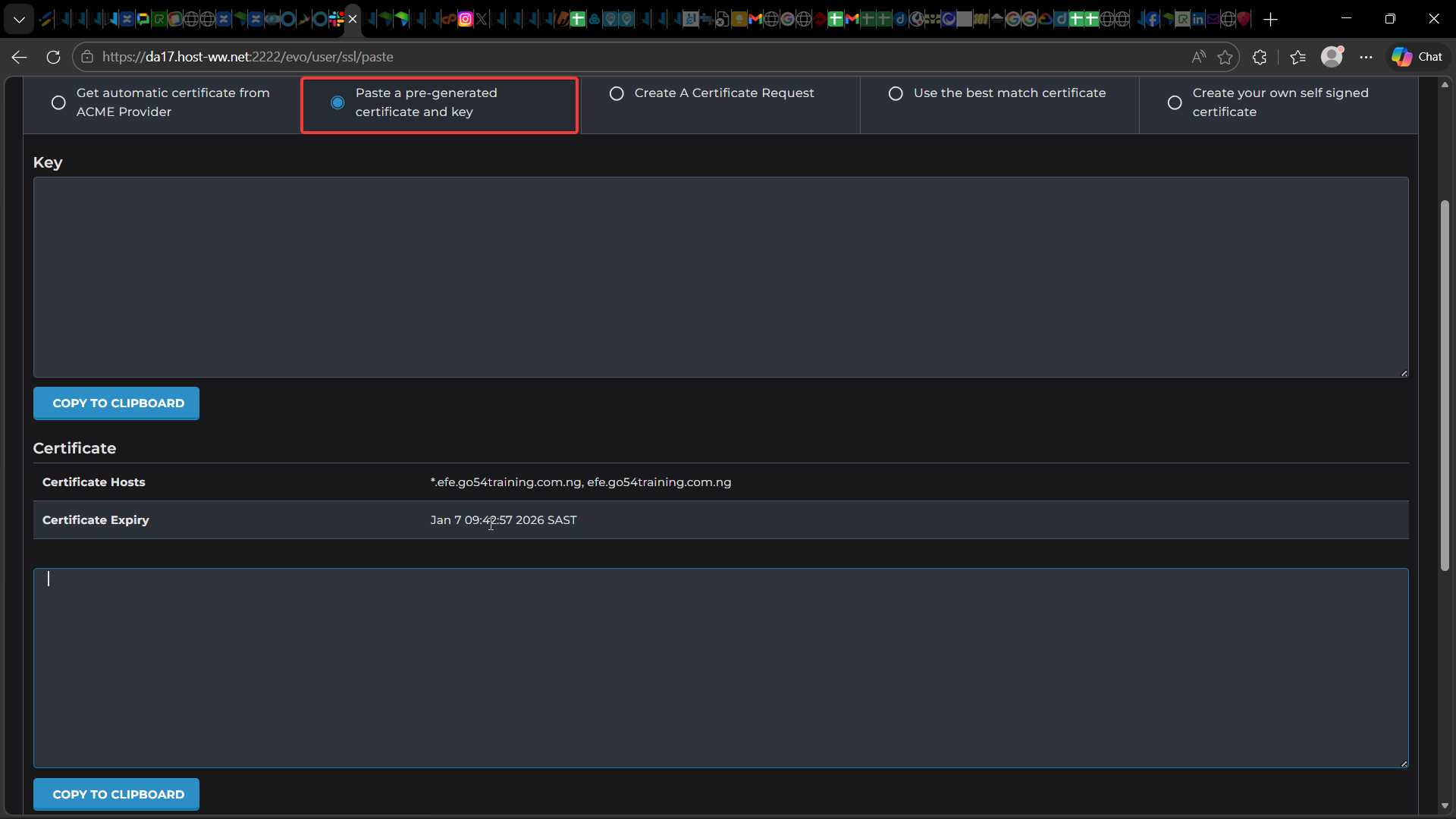
Choose Paste a Pre-generated Certificate and Key.
-
Paste the following:
-
Your Private Key (generated with CSR).
-
Your Certificate (issued by CA).
-
Your CA Root/Intermediate Bundle (if provided).
-
Click Save.
-
Step 6: Verify Installation
-
Visit your site using
https://yourdomain.com. -
Use tools like SSL Labs Test to confirm proper installation.