
How to Set Up Domain Pointers in DirectAdmin
Domain Pointers in DirectAdmin allow you to point multiple domain names to the same document root. This means visitors accessing the pointer domain will see the same content as the primary domain. It’s essentially an alias or parked domain feature.
For example: If you set up test.example.com as a pointer to example.com, both domains will display the same website content.
Steps to Set Up a Domain Pointer
1. Log in to DirectAdmin
-
Access your DirectAdmin control panel using your credentials.
2. Navigate to Domain Pointers
-
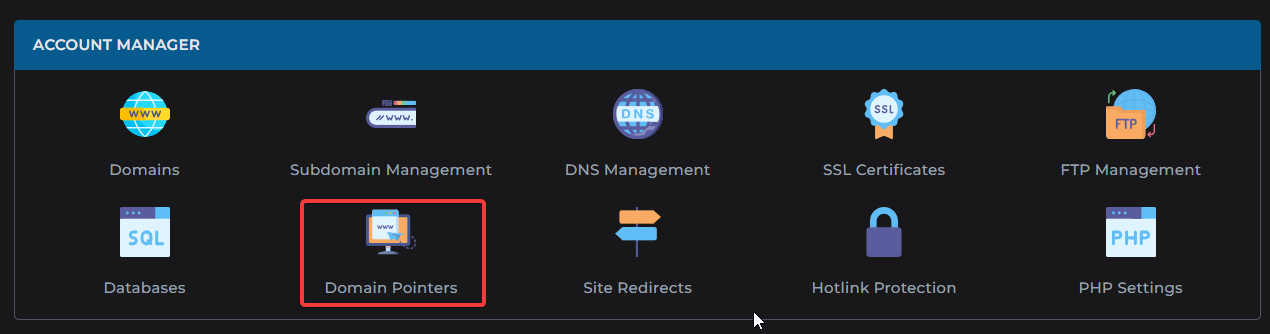
From the Account Management section, select Domain Pointers.
3. Create a Domain Pointer
-
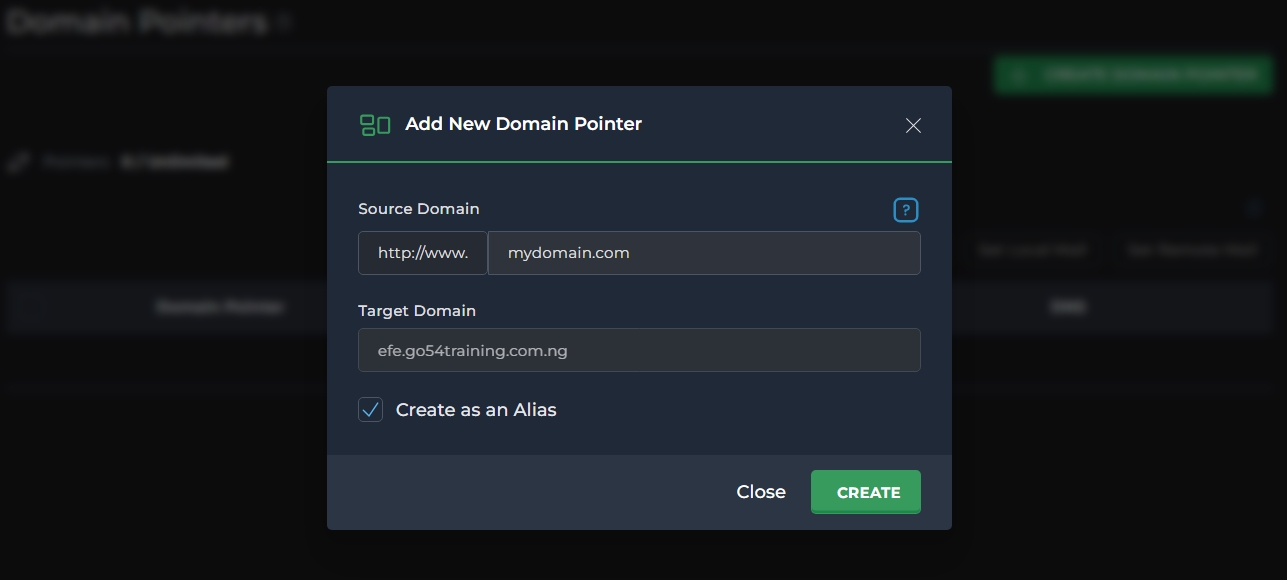
Click Create Domain Pointer.
-
Enter the Source Domain (the domain you want to park/alias).
-
Select the Target Domain (the primary domain).
-
If you want the source domain to act as an alias, check Create as an Alias.
-
Click Create to finalize.
4. Verify Setup
-
Once created, the source domain will redirect to the target domain.
-
Note: DNS propagation may take up to 24 hours before the pointer becomes active globally.