
How to Install AutoSSL from the DirectAdmin Panel
AutoSSL allows you to automatically issue and install free SSL certificates (usually via Let’s Encrypt) for your domains. This ensures your website is always served securely over HTTPS without manual certificate management.
Prerequisites
-
Access to your DirectAdmin control panel.
-
A domain name pointing to your hosting server.
-
DNS records (A/AAAA) correctly configured for the domain.
Step-by-Step Guide
1. Log in to DirectAdmin
-
Navigate to your hosting provider’s DirectAdmin login page.
-
Enter your username and password.
-
Once logged in, you’ll see the main dashboard.
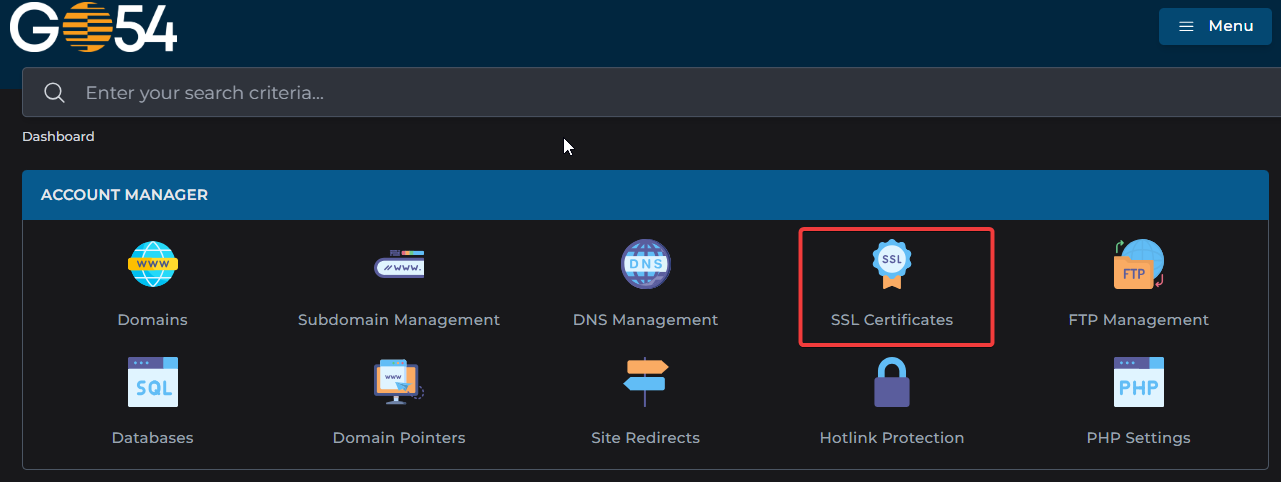
2. Access SSL Certificates
-
Go back to Account Manager.
-
Click on SSL Certificates.
-
You’ll be taken to the SSL management interface.
3. Activate SSL
-
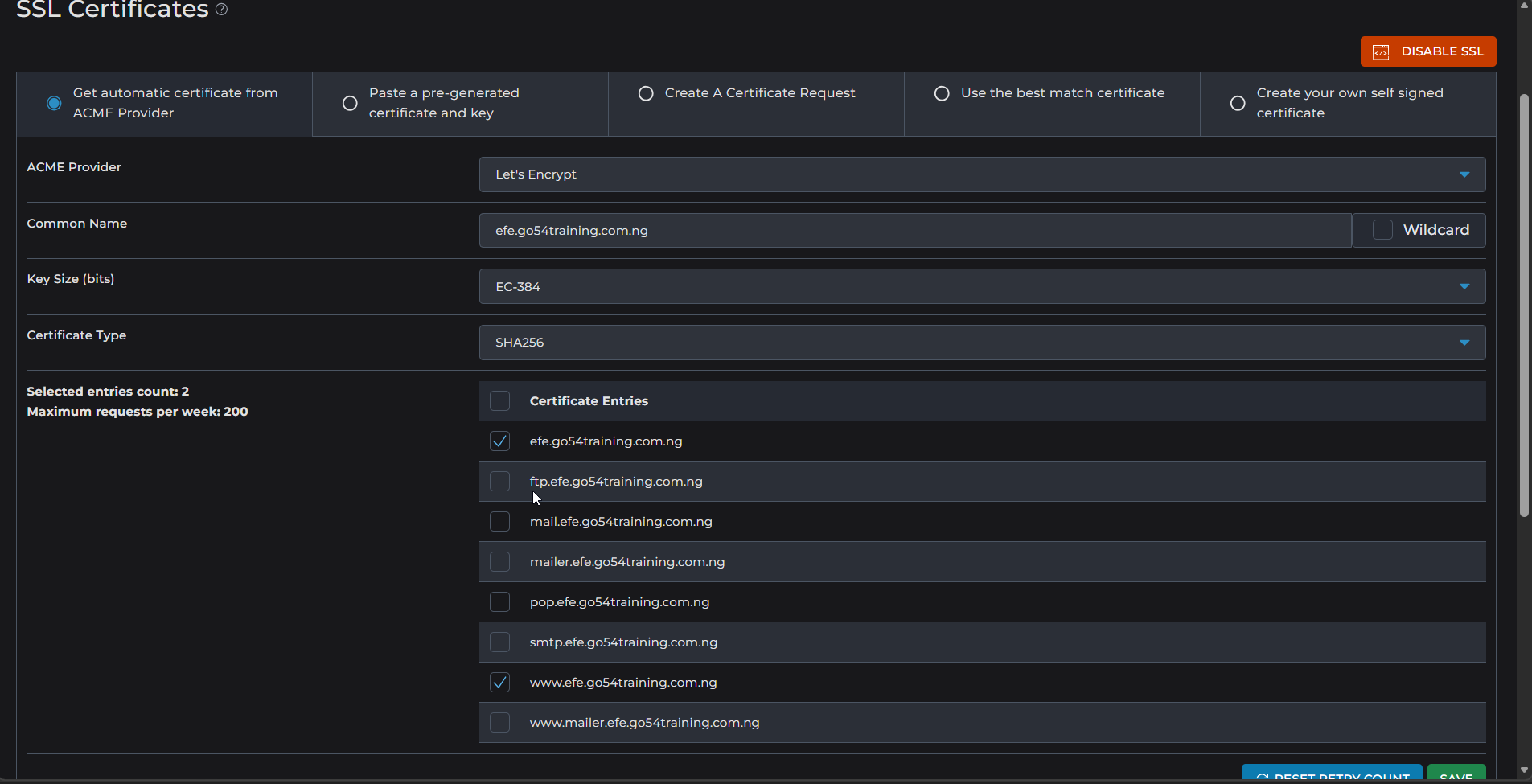
Select the “Get automatic certificate from ACME Provider” option
-
Tick the boxes for:
-
Secure the domain itself (example.com)
-
Secure www subdomain (www.example.com)
-
Choose the Certificate Entries on the checkbox lists for Any additional subdomains you want covered. Alternatively, you can select the wildcard to cover all subdomains
-
Click Save or Issue Certificate.
-
4. Wait for Verification
-
DirectAdmin will attempt to verify your domain ownership via DNS/HTTP validation.
-
This process usually completes within minutes, but can take up to 24 hours.
-
Once successful, the SSL certificate will be installed automatically.