
Description
Email forwarding allows you to redirect incoming emails from one address to another. This is useful if you want messages sent to your domain email to arrive in your personal inbox, or if you want to consolidate multiple accounts.
Step 1: Log in to Your Client Panel
-
Access your hosting account by logging into the Direct Admin panel with your credentials.
Step 2: Navigate to Email Forwarders
-
Select the product associated with your domain.
-
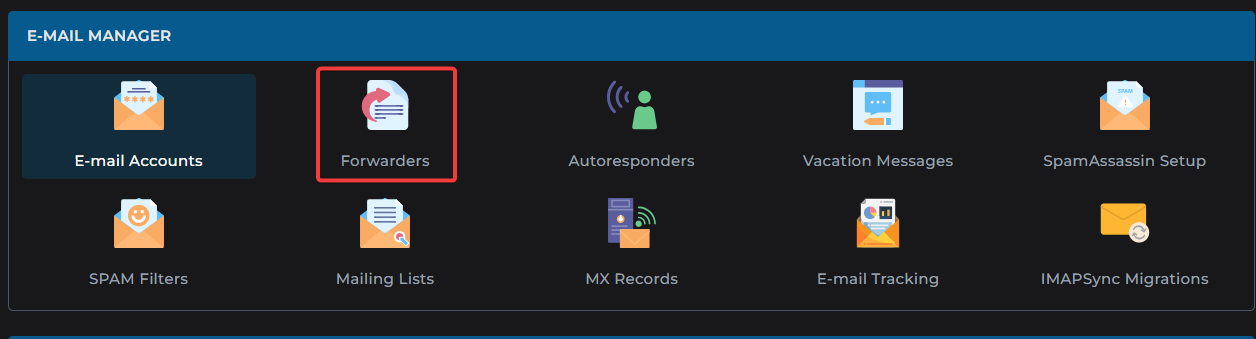
Under Email Management, click on Forwarders.
Step 3: Create a New Forwarder
-
Click the Create Email Forwarder button.
-
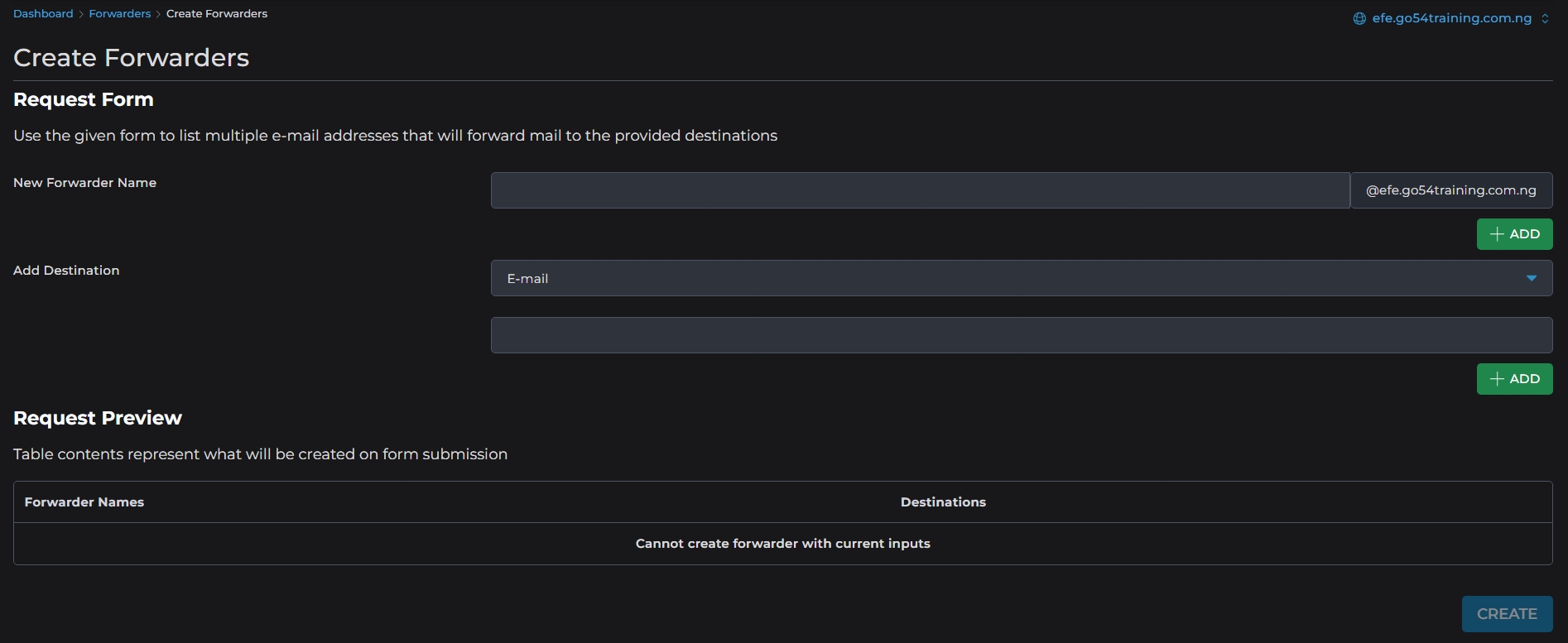
Enter the following details:
-
Forwarder Name: The email address you want to forward from (e.g., info@yourdomain.com).
-
Destination Email: The email address where messages should be delivered (e.g., yourname@gmail.com).
-
-
Click Create to finalize.
Step 4: Confirm Forwarding
-
Once created, the forwarder will appear in your list of active forwarders.
-
Test by sending an email to the original address and checking if it arrives at the destination inbox.